
Installation (CMS-SE-LXC)
In this section, we will walk you through the steps to install CAYIN CMS Station in QNAP NAS.
Preparing for the Installation
- Log in QNAP NAS’ web administration page.
- Go to the NAS' App Center.
Installing CAYIN CMS Station
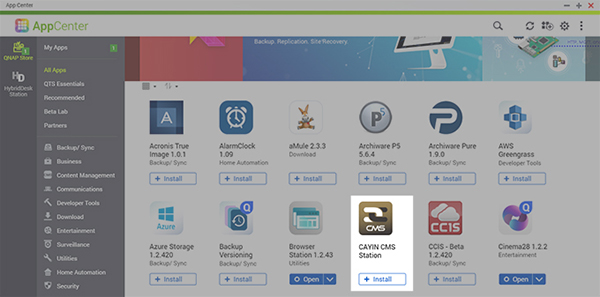
- Locate the icon of CAYIN CMS Station and click the Install button. Then, the system will start to install the APP automatically.
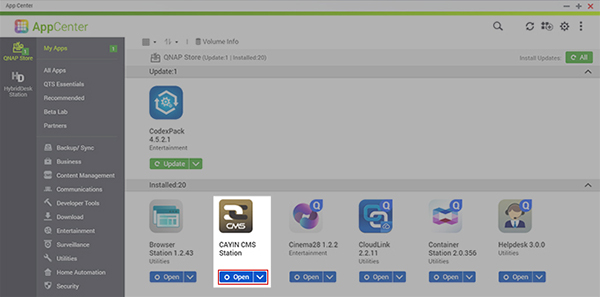
- Click the Open button under the icon of CAYIN CMS Station in the App Center.
- You will see the configuration page of CMS Station.
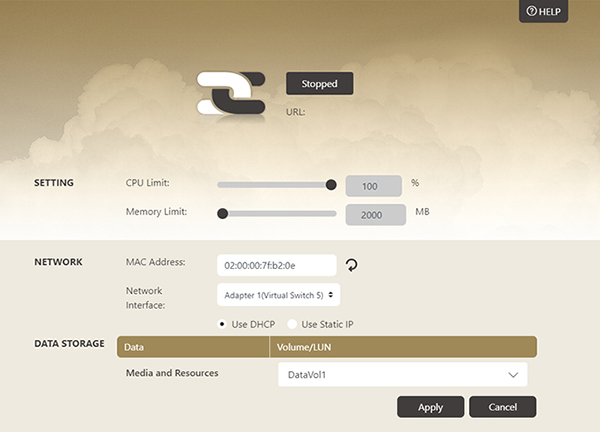
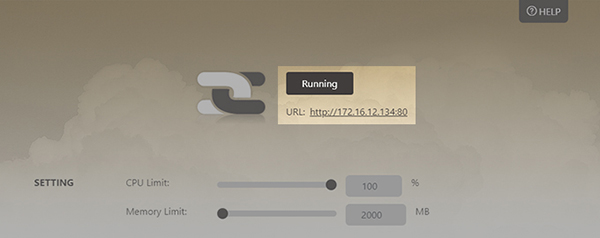
CPU Limit You can keep the default setting (100%). Memory Limit Please reserve at least 2000 MB memory. MAC Address You can check the MAC address here. Network Interface Click the drop-down menu and select a network interface. Then, choose to use either DHCP or static IP based on your needs. Data Storage Click the drop-down menu and select a partition to store all multimedia files and resources. - Click Apply after you complete all settings. If the status changes from Stopped to Running, it means CAYIN CMS Station has been installed successfully. You can start to use the digital signage server software. Click the URL below the word Running, and you will go to the login page of Web Manger, the management interface of CAYIN CMS Station.
- The APP you just installed is the trail version of CAYIN CMS Station. You still need to go to License Center to purchase and activate SMP licenses based on the number of SMP players you need to manage in your project. Please refer to Activation for more details.
Note
The trial software allows you to test all functions, including those in CMS-PRO, but this CMS server can only manage ONE SMP player.
Please note that you can’t use CMS-PRO’s functions anymore if you only purchase SMP licenses without CMS-PRO. Once your SMP licenses are purchased and activated, CMS-PRO’s functions will be removed from CMS’ management interface.