
Activation
After the initial log in, you will need to activate the software to complete the installation process, otherwise your CMS server can only manage one media player for 90 days. Please purchase the license and activate the software to access full functions.
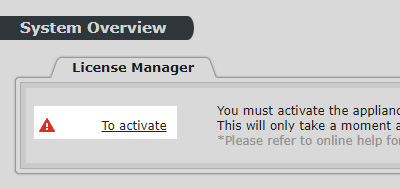
To activate your software:
Click To activate in System Overview, under System > License Manager.
Online activation (recommended)
We suggest that you activate the appliance with internet connection.
- Enter your serial number and click the ACTIVATE button.
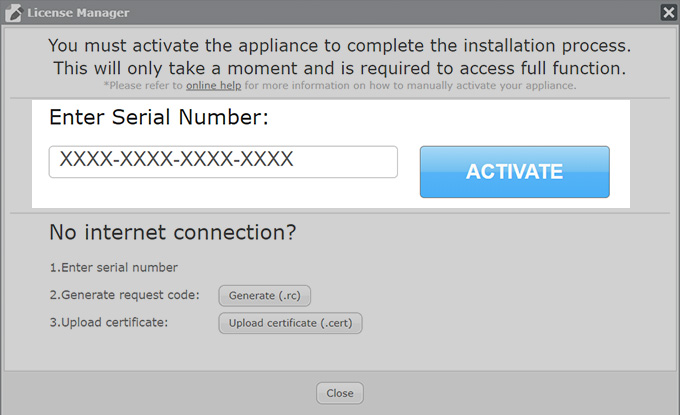 |
- If your appliance is connected to the internet, the activation process should complete in a matter of seconds. Once the activation is complete, you will see the following message:
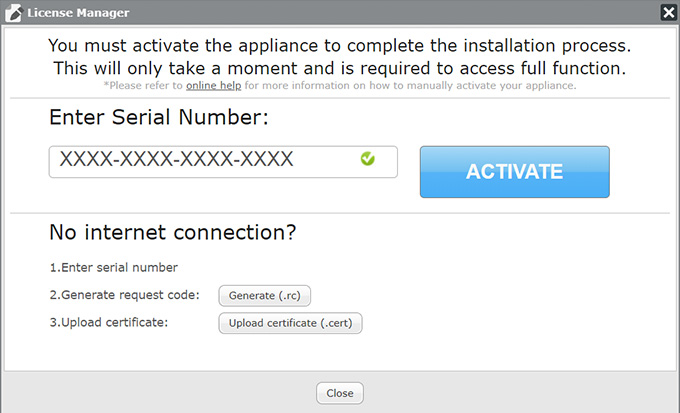 |
- Click Close to exit License Manager, or the system will jump back to the System Overview page automatically in a few seconds..
- If you see a failure message, please check your internet connection and try again. If problem persists, please contact your representative.
Offline (manual) activation
If your appliance is not connected to the internet, or if the online activation failed, you can manually activate your appliance by following these steps:
- Enter your serial number.
- Click Generate.
- A registration code (.rc file) will be generated. Please send this file and your product code via email to your sales representative. You can find the product code on the CD or purchase email from CAYIN or your dealer.
- Once your representative completes the activation process, you will receive a reply with a certification (.cert file).
- Choose the .cert file (please make sure the filename matches the product code), and click Upload certificate.
Once you've successfully uploaded the .cert file, you will see the following message:
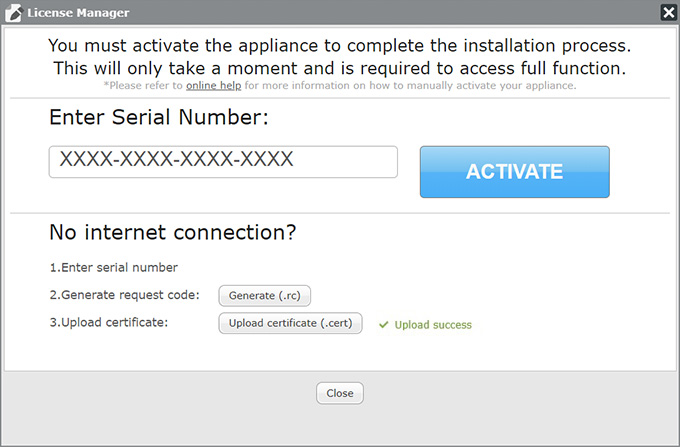 |
- Click Close to exit the dialogue box.
- If you see a failure message, please contact your sales representative.
FAQ
Here you will find solutions to commonly asked questions regarding the activation process.
- Do I have to activate my CMS-WS to use it?
- You can still access all the functions in the web manager, but CMS-WS will only connect with and manage 1 media player for 90 days. After the trial period, no player can connect to the server.
- I clicked ACTIVATE but it shows “Connection failed.” What can I do?
- Please check your internet connection, or reboot your router and try again. If problem persists, please contact your representative.
- I clicked ACTIVATE but it shows “Activation failed.” What can I do?
- Please take a screenshot and contact your representative.
- I clicked Generate but nothing happened.
- You should be able to locate your .rc file in your Download folder. If it’s not there, try clicking Generate again. If problem persists, please contact your representative.